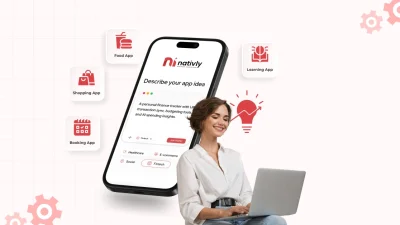
Short Answer: A good prompt tells the AI four things: who the app is for, what problem it solves, which features it needs, and how it should look. Write these in 3-6 simple sentences, paste them into an AI app builder like Nativly, and you can have a first working version in minutes. Then improve it one change at a time.
|
What Does “App Idea to Live App in Minutes” Really Mean?
It means you can get a functional first version of your app in minutes, rather than months. You describe the app in plain English, and the AI builds the screens and basic features. A polished app ready for Google Play or the App Store still requires testing, fixes, and store approval.
An AI app builder is a tool that creates software from written instructions instead of manual coding. Those written instructions are called prompts. The clearer your prompt, the closer the first version will be to what you imagined.
Nativly builds Android and iOS apps. A native app is built for the phone itself, so it installs from an app store and can use phone features. It is not only a website inside an app shell. According to Nativly’s own guide, AI builds the app, and engineers help make it production-ready (see the full AI app builder comparison).
The 6-Part Prompt Formula for Building an App With AI
Treat your prompt like a short plan, not a search query. Include the app type, the users, the key features, the main goal, the look and feel, and any limits. Various builder guides suggest a similar fill-in-the-blank pattern, such as “A [app type] for [users] to [purpose]” (see sources below).
| Part | What to write | Example |
| 1. App type | What kind of app is it? | A booking app |
| 2. Users | Who will use it? | For yoga studio customers |
| 3. Main goal | What problem does it solve? | To book and cancel classes quickly |
| 4. Key features | 3–5 things users can do | Sign up, view schedule, book, get reminders |
| 5. Look and feel | Colors, mood, style | Calm, light green, simple |
| 6. Limits | What to leave out or keep | No payments in version one |
| Tip: Keep the first version small. Ask for the main feature first. You can add more later. |
What Should You Do Before You Write the Prompt?
Spend five minutes on planning. A short plan makes your prompt clearer and saves time later.
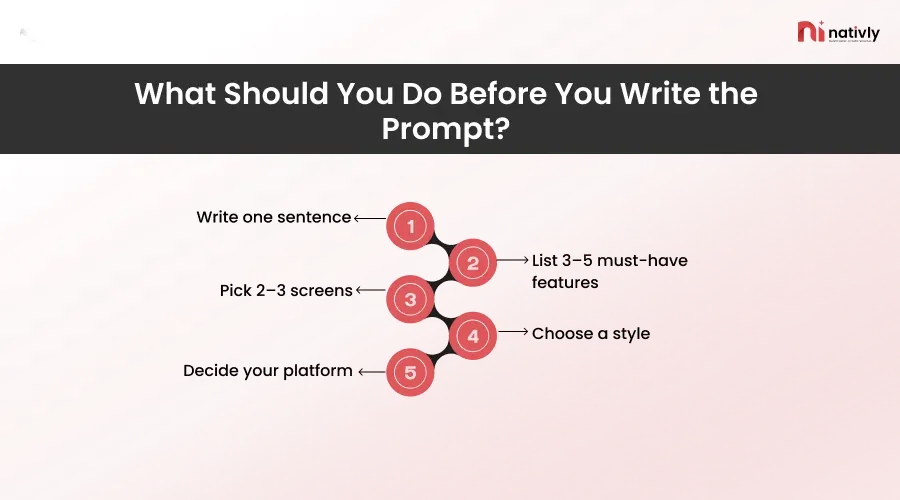
- Write one sentence: “My app helps [person] do [task].”
- List 3–5 must-have features. Cross out anything that is “nice to have.”
- Pick 2–3 screens: For example, home, booking, profile.
- Choose a style: Simple, bold, playful, or professional.
- Decide your platform: Android, iOS, or both.
5 Copy-and-Paste Prompts to Start Your App
Use these as templates. Change the terms in brackets to match your idea. Each one follows the 6-part formula.
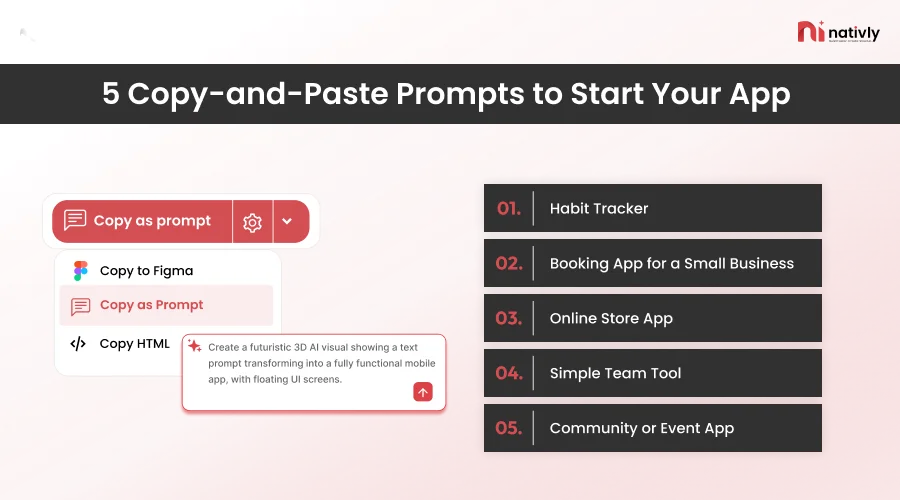
1. Habit Tracker
Build a habit tracker app for busy students to build daily routines. Users can add habits, mark them off each day, and see a weekly streak. Show a simple progress chart. Use a clean, friendly design with big buttons.
2. Booking App for a Small Business
Build a booking app for [yoga studio] customers to book and cancel classes. Users can create an account, see the weekly schedule, book a spot, and get a reminder before class. Use a calm style with light green and white. Don’t include payments yet.
3. Online Store App
Build a shopping app for a small clothing brand. Users can browse products, save favorites, browse by category, see order status, and add items to a cart. Use a modern black-and-white style with large photos. Start with 10 sample products.
4. Simple Team Tool
Build a task app for a small team of 5 people. Users can create tasks, assign them to a teammate, set a due date, and mark them as done. Show a list of tasks due today on the home screen. Use a professional blue design.
5. Community or Event App
Build an event app for people in [city] who like [running]. Users can see upcoming events, join an event, and chat with other members. Add a profile page with a photo and short bio. Use an energetic style with bright orange.
How Do You Improve Your App After the First Build?
Make one change at a time and test the app after each update. If you ask for ten changes at once, it’s hard to see what worked and what broke.
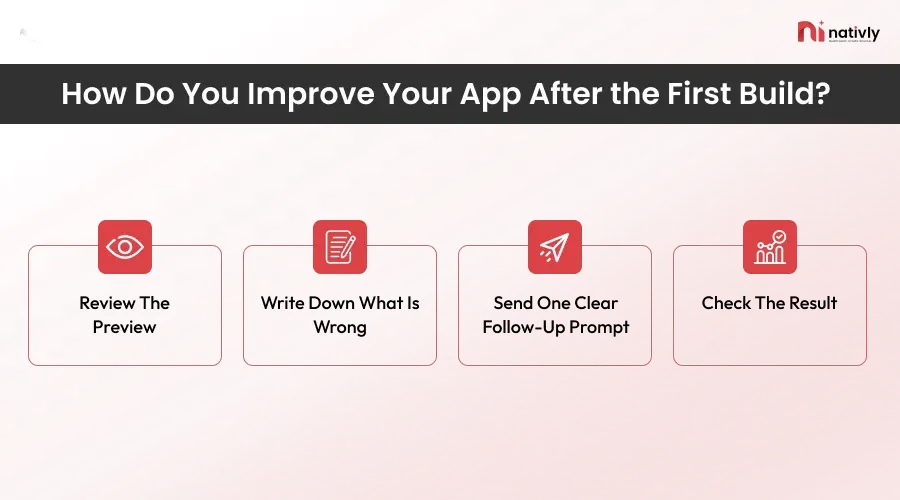
- Review the preview. Click through every screen like a real user.
- Write down what is wrong. Keep a short list.
- Send one clear follow-up prompt. Say exactly what to change and where.
- Check the result. Then move to the next item.
| Weak follow-up | Strong follow-up |
| Make it look better. | On the home screen, make the buttons bigger and change the main color to dark blue. |
| Add more features. | Add a search bar at the top of the schedule screen so users can find classes by name. |
| It does not work. | When I tap “Book,” nothing happens. Please show a confirmation message and save the booking. |
What Mistakes Make an App Prompt Fail?
Most weak results come from vague or overloaded prompts. Avoid these five mistakes:
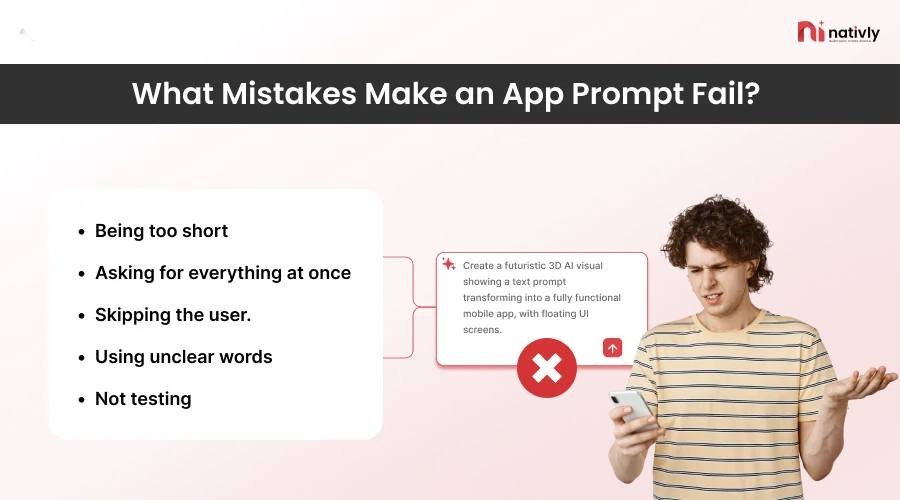
- Being too short. “Make a fitness app” leaves the AI guessing.
- Asking for everything at once. Start with the core feature.
- Skipping the user. The AI needs to know who the app is for.
- Using unclear words. Say “a green button” instead of “something nice.”
- Not testing. Always try the preview on a real phone.
How Do You Go From Preview to a Live App?
Test, fix, then publish to Google Play and the App Store. Going live has a few extra steps that no prompt can skip.
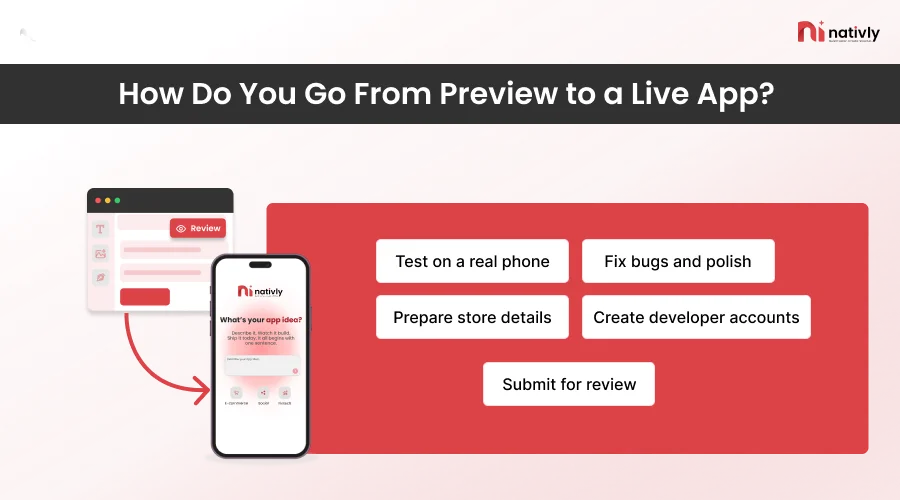
- Test on a real phone. Check buttons, forms, and slow internet.
- Fix bugs and polish. Use short, one-change prompts.
- Prepare store details. You will need an app name, icon, description, and screenshots.
- Create developer accounts. Google and Apple both require one. Check their websites for current fees.
- Submit for review. Apple and Google review every app. This can take longer than building the first version.
If your project is bigger, like a company app with various users, read these guides: building enterprise apps with AI and how to choose an AI app builder for your business.
Why Build Your App With Nativly?
Nativly turns plain-English prompts into real native Android and iOS apps, with engineers who help you reach launch. They help when you are not a developer and don’t want to get stuck at the last step.
According to Nativly’s published guide, key features include real native code, live phone previews, built-in backend, GitHub export with code ownership, and app store publishing support. The guide also notes limits: complex business logic may still require developers, and AI-generated code may need fixing.
Plans and prices can change, so check the Nativly website for current details. You can also compare options in the top AI mobile app builders list or see real-world examples of AI app builders at work.
Conclusion
A clear prompt is the quickest way to turn your idea into an app. Use the 6-part formula, start small, and improve one change at a time. Then test on a real phone and publish.
FAQs
Q1. What is a prompt for an AI app builder?
A prompt is a short written instruction that tells the AI what app to make. It says who the app is for, what it does, and how it should look.
Q2. Can I really build an app in minutes?
You can get a first working version in minutes. A polished app that is ready for the App Store or Google Play usually takes more time for testing, changes, and store review.
Q3. Do I need to know how to code?
No. You describe your app in plain English. Coding knowledge helps only for very complex features.
Q4. How long should an app prompt be?
Three to six sentences are enough for a first prompt. Add details later, one change at a time.
Q5. What is the difference between a native app and a web app?
A native app is built for Android and iOS and installs from an app store. A web app runs inside a browser.